
Setup walkthrough (with screenshots)
Demonstration: these screenshots come from a demonstration account for a made-up business, Bright Smile Dental (brightsmile.example). They show the current app on the free plan. Nothing in them belongs to a real customer.
This is the PageNora setup, one screen at a time, in the same order as the app: from signing in to your first “all working”. It takes about five minutes. For every detail and option, see Getting started. For a tour of each tab, see Using the dashboard.
On the free plan you can watch 3 pages on 1 website, with no card needed and no end date. Each page is checked once a day, and a problem is only reported once two separate checks agree.
1. Sign in with your email
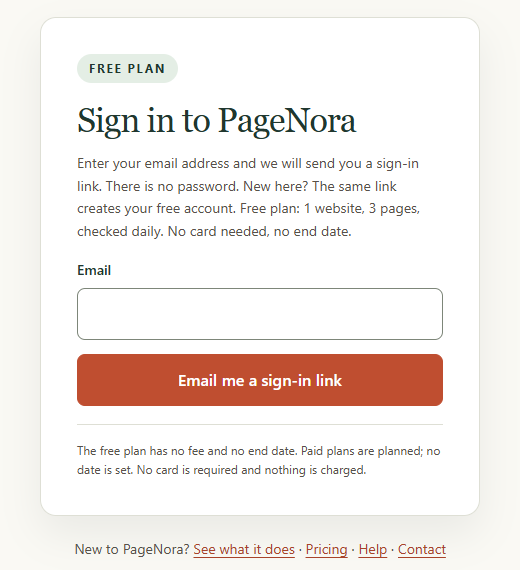
Enter your email address and press Email me a sign-in link. There is no password: the link works once and expires after 15 minutes. Not there? Check your spam or junk folder. After a minute you can press Resend link, or Use a different email if you typed the wrong address. New here? The same link creates your free account. When you open it, a short “You’re almost in” page asks you to tap a button to finish signing in on that device.
2. The setup guide opens by itself
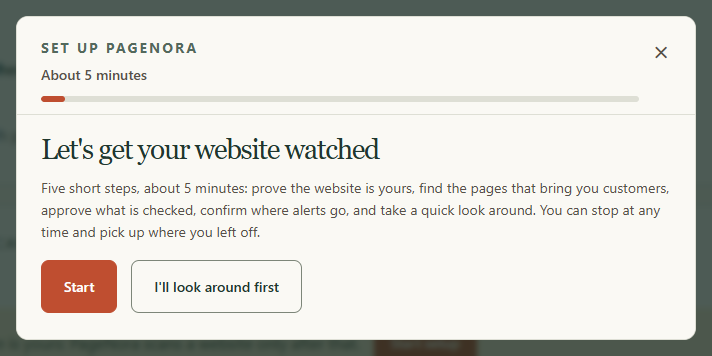
A new account opens the setup guide on its own. It has five short steps: prove the website is yours, find your pages, approve what is checked, confirm where alerts go, and a quick look around. You can stop at any time and pick up where you left off.
3. Prove the website is yours
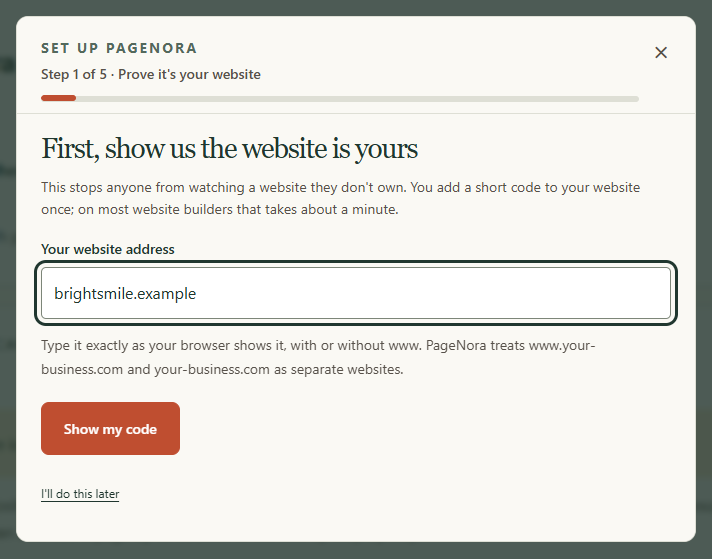
Type your website’s address the way your browser shows it, then press Show my code. This stops anyone from watching a website they don’t own.
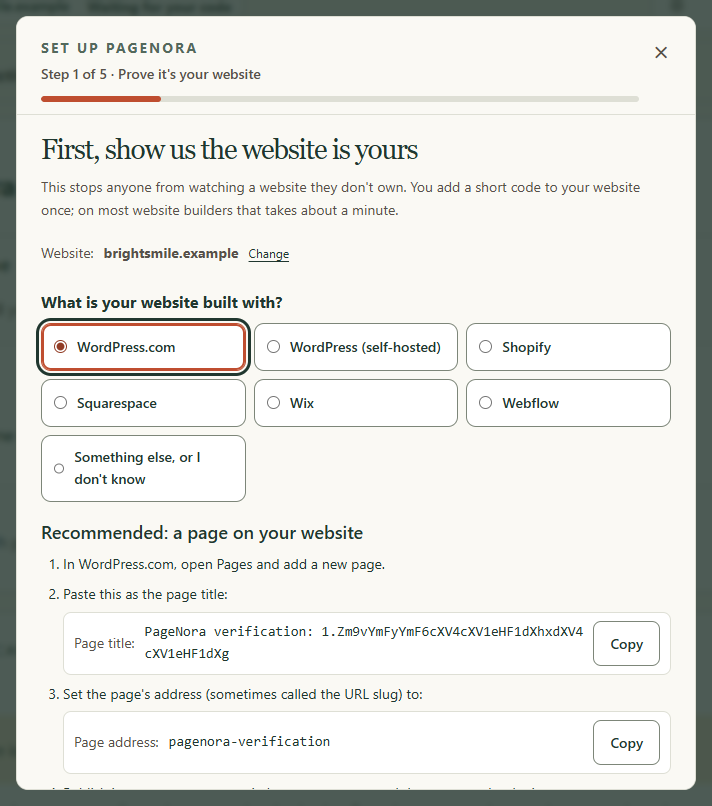
Pick what your website is built with and the guide shows your code with Copy buttons. The recommended way is a page: publish a new page at /pagenora-verification/ with the title it gives you. You can also use a text file or a tag on your home page instead (under Other ways to add the code). If that page or file already carries another PageNora code, add yours after it: in the page title with a space between, or on a new line in the file. Publish it within 48 hours. While the guide is open it looks for the code by itself, or press Check now once it is published.
4. Verified
It usually takes under a minute. The guide confirms the website is verified and moves straight on. Keep the proof published for as long as you want monitoring: PageNora re-reads it about once a day.
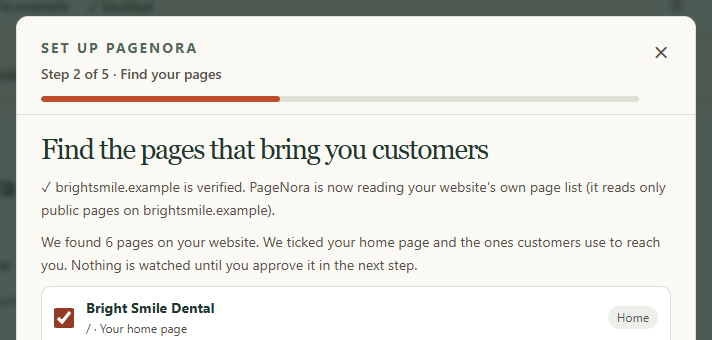
5. Find the pages that bring you customers
PageNora reads your website’s own page list (public pages only) and ticks the pages customers use to reach you first: booking, contact, quote and pricing pages, and pages with a form. Your home page is ticked after them when your plan has room. This usually takes 1-2 minutes. Tick or untick any others, or use Missing a page? Paste its address for a page that isn’t listed. The free plan watches 3 pages; the note under the list says how many more your plan has room for. Nothing is watched until you approve it.
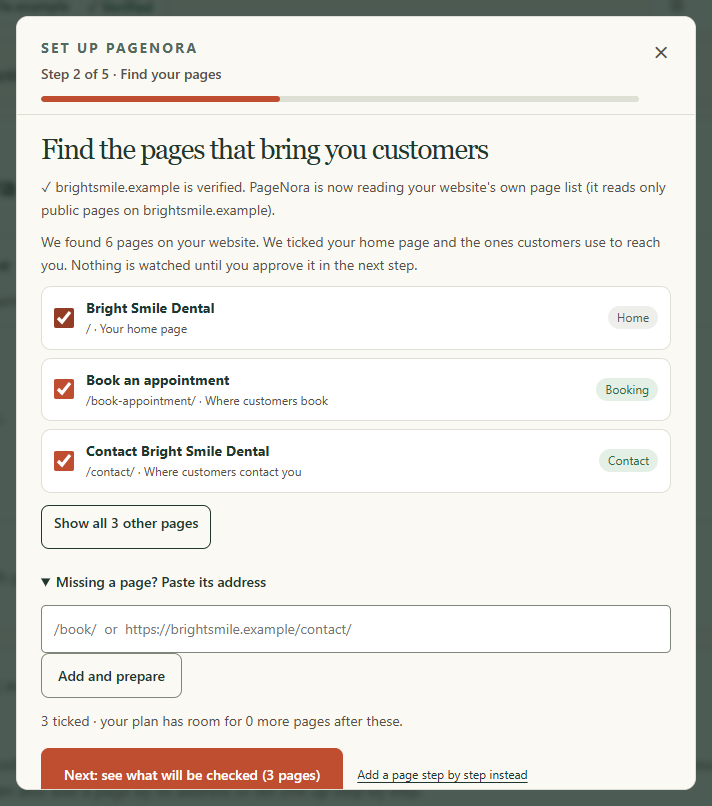
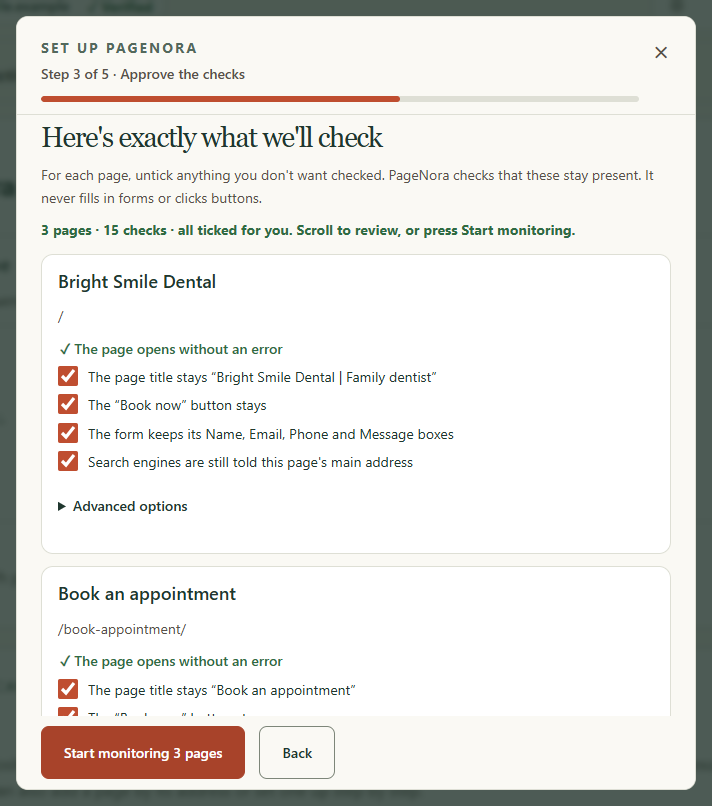
Press Next: see what will be checked. You see exactly what PageNora will check on each page, such as the page opening without an error, the page title, a button or a form. Untick anything you don’t want checked, then press Start monitoring. PageNora never fills in forms or clicks buttons.
Later, you can add more pages from the dashboard with + Add a page, which opens Add pages: choose From your website’s page list, open See exactly what will be checked on any page under Ready to add, then press Add this page or Add all recommended.
6. Make sure alerts reach you
Next the guide asks where alerts should go. Alerts go to one email address. Press Send me a test alert, then press Yes, I got it in the email marked TEST. The guide then shows that alerts reach you. The test is optional; press Next to move on.
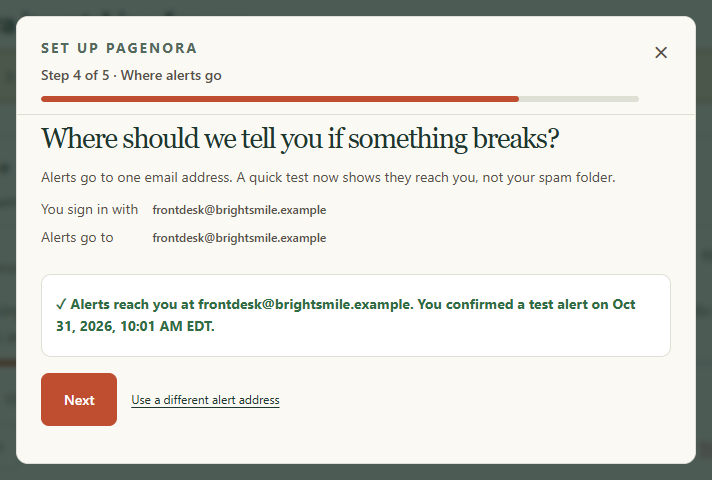
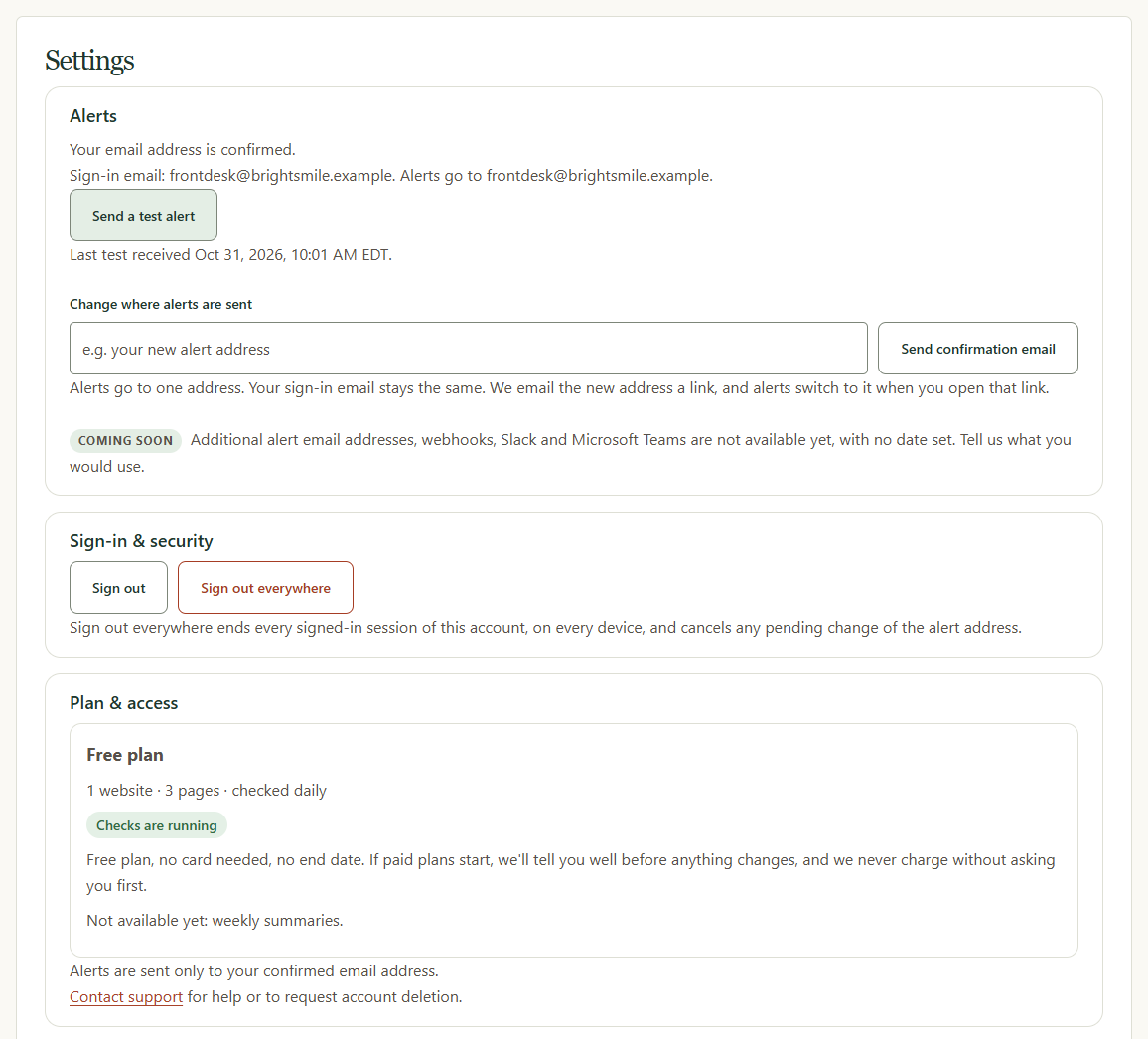
You can send another test at any time from Settings › Alerts with Send a test alert. That section is also where you change where alerts are sent; your plan details are under Plan & access.
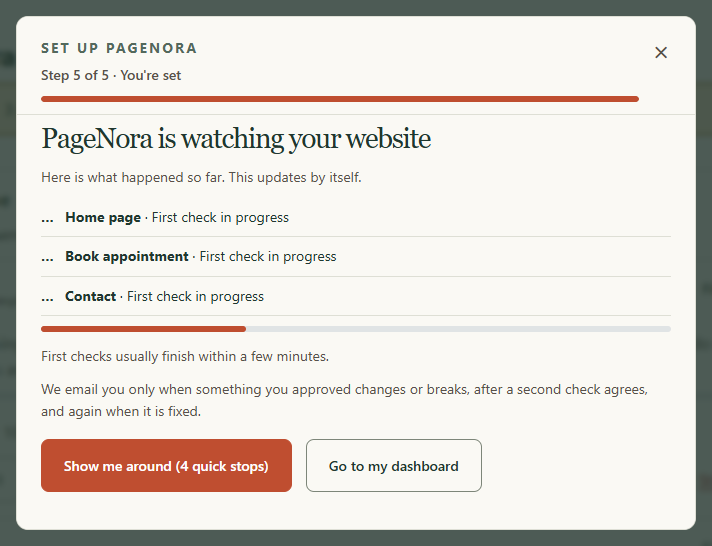
7. PageNora is watching
The guide’s last screen confirms that PageNora is watching your website. Each page shows “First check in progress”. First checks usually finish within a few minutes, and the screen updates by itself. From here you can press Show me around for a short tour, or Go to my dashboard. At the end of setup, the guide also points you to two optional email checks in the Email tab: the email settings watch and, in beta, the mailbox watch. You can ignore them, or turn them on later. The screenshot leaves them out because they appear only when they are available.
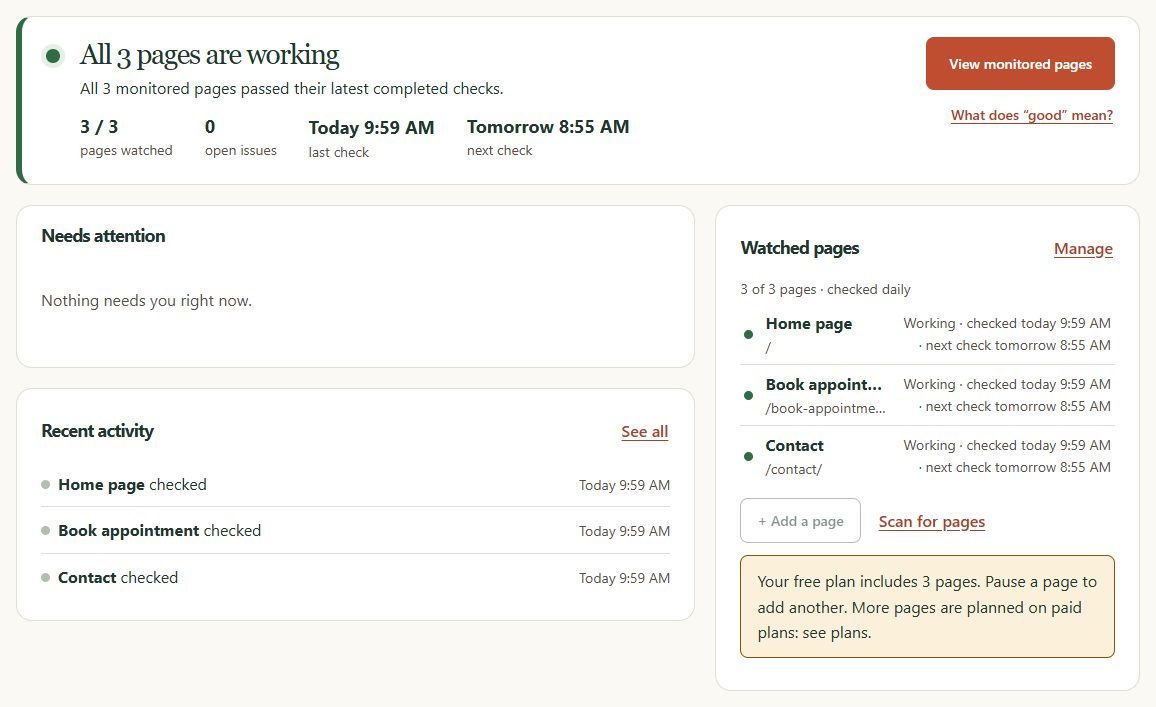
8. Your pages, all working
When the first checks finish, the Overview says all your pages are working, with pages watched (here 3 of 3), open issues, the last check and the next check. Each watched page shows Working and the time of its last check.
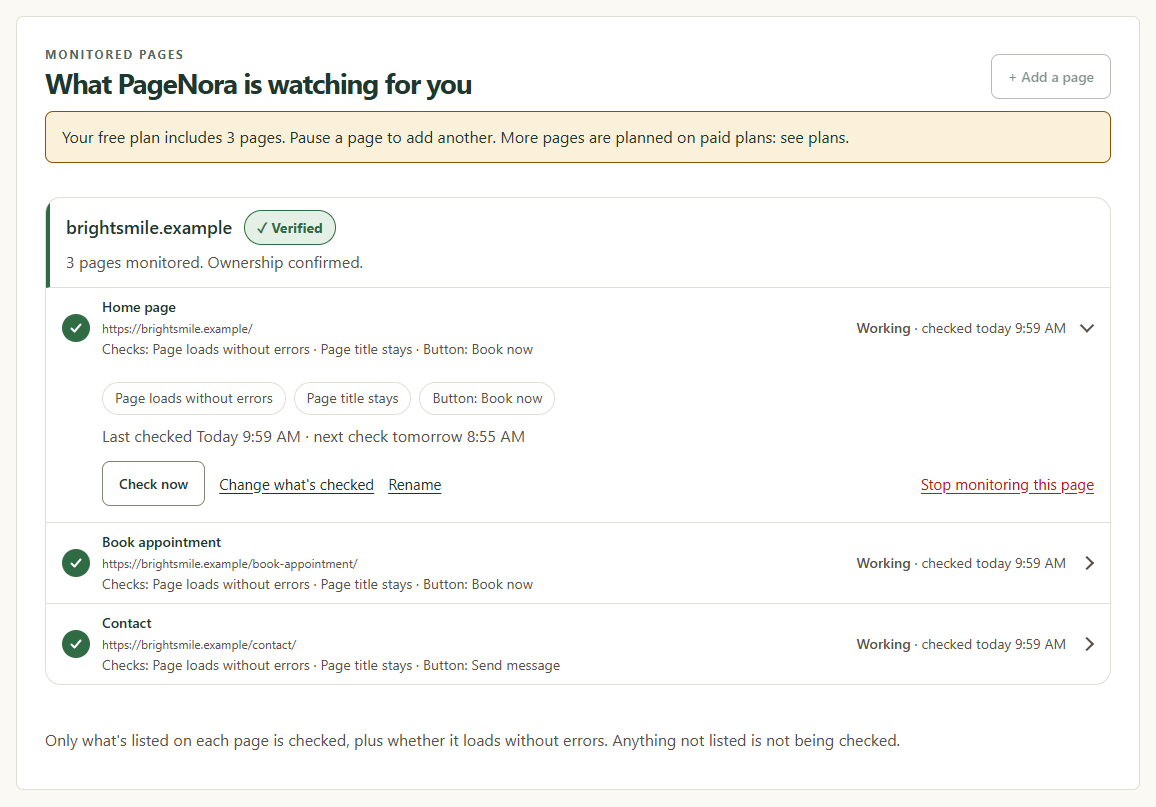
The Pages tab lists each page under its website with its status. Open a page to see what is checked, when the next check is, and buttons to Check now, Change what’s checked, Rename or Stop monitoring this page.
9. Activity
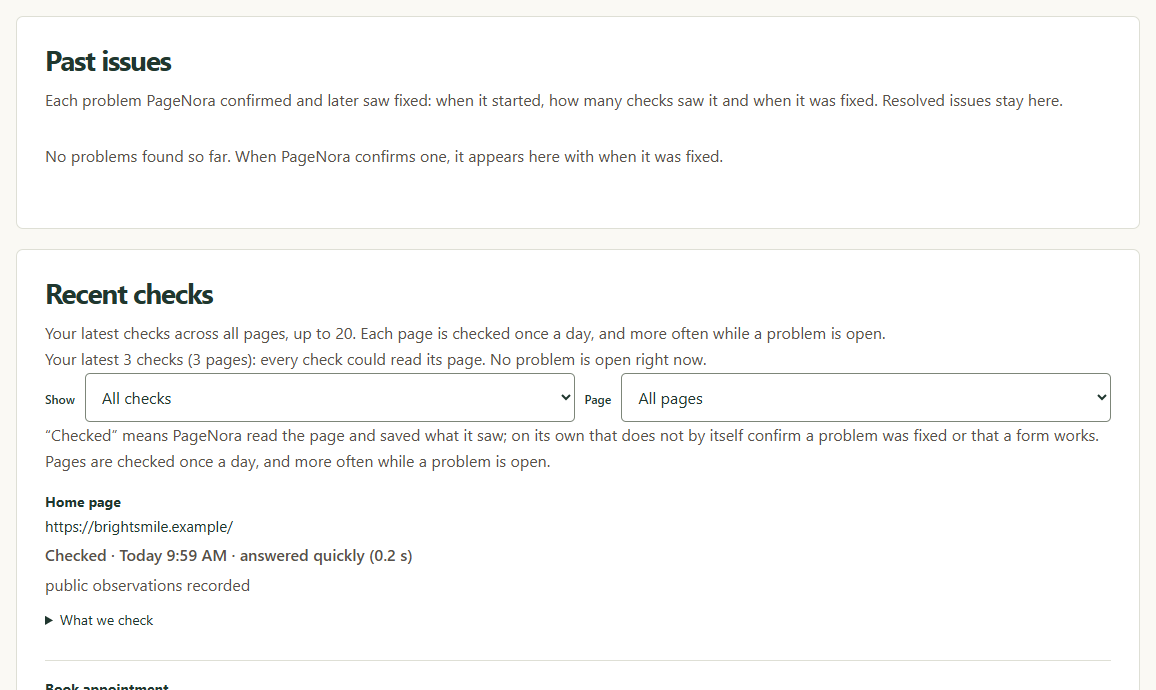
The Activity tab lists past issues and your most recent checks, with when each check ran and how quickly the page answered. If everything is fine, you hear nothing by email, so this is the place to see that checks are running.
Want PageNora for your website?
The free plan has no fee and no end date: 1 website, 3 pages, checked daily, no card. Already have an account? Start with Getting started.

